

Google OAuth 100 User Limit: How to Scale Gmail Connections in Looply
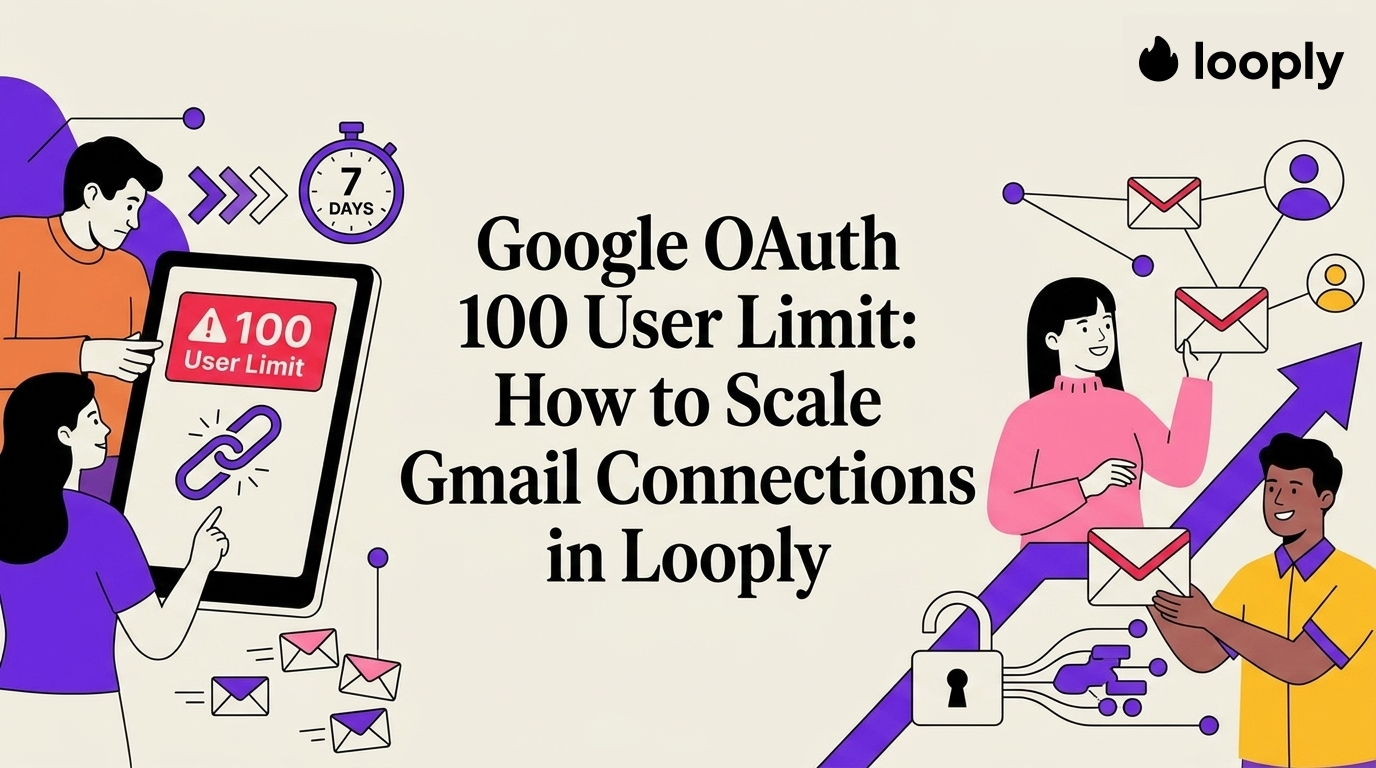
If you are connecting Gmail or Google Workspace senders to an outreach workflow, the Google OAuth 100-user limit is one of those hidden setup details that can suddenly block a rollout.
The short version: Google OAuth apps left in Testing mode are meant for development. They can be limited to test users, and refresh tokens for external testing apps can expire after seven days unless the app only asks for basic sign-in scopes. That is not enough for a production sender workflow.
What the Google OAuth 100-user limit means
When a Google OAuth consent screen is configured for an external app and kept in Testing mode, only listed test users are supposed to authorize the app. That test-user list is capped, so a team can hit the ceiling long before the rest of the company or customer base is ready to connect.
For a basic sign-in flow, this may feel like a temporary inconvenience. For Gmail sending and reply detection, it is more serious because the sender connection is part of campaign delivery.
Why this matters for Gmail senders in Looply
Looply email campaigns need sender accounts that are reply-ready. For Gmail and Google Workspace, that means the connection has to support the permissions Looply uses to send messages, detect replies, and keep the inbox state aligned with campaigns.
A test OAuth app can make the first connection feel successful while still being wrong for production. The failure usually appears later, when another sender cannot authorize, a refresh token stops working, or reply detection needs Gmail permissions that were not approved correctly.
The seven-day token trap
Google documents that refresh tokens for external OAuth apps in Testing mode can expire after seven days unless the app only requests basic profile scopes. Gmail sender workflows usually need more than profile-only access, so a test connection is not a stable production setup.
Option 1: Finish Google OAuth verification
If your team is using its own Google OAuth app for Gmail access, the durable path is to move the OAuth consent screen out of Testing and complete the verification Google requires for the scopes you request.
This is the right path when your organization owns the OAuth app and wants to operate it directly.
Option 2: Restrict the app to basic sign-in scopes
If all you need is login, an OAuth app using only basic profile scopes can avoid some of the operational pain around Gmail access. But profile-only scopes do not let Looply send campaign emails, read reply metadata, or show inbox replies for a sender.
Option 3: Use the production Gmail connection flow in Looply
For Looply users, the practical path is to connect Gmail and Google Workspace senders from Email Accounts, then follow the Google consent and Workspace admin approval flow shown in the app.
Which path should you choose?
Common errors and what they usually mean
Access blocked: app has not completed verification
The OAuth app may be requesting sensitive or restricted scopes before verification is complete. Finish Google verification or connect the sender through the supported Looply flow.
This app is in testing mode
The account is not in the test-user list, or the app is still configured as a development app. Do not treat this as production readiness.
Gmail permission required
Looply needs the correct Gmail permissions to send messages and detect replies. Reconnect the sender from Email Accounts and approve the requested permissions.
Google Workspace approval required
Some Workspace domains require an admin to approve Looply before users can connect Gmail senders. Ask the admin to approve the app in Google Admin, then retry the connection.
FAQ
Can I run real campaigns from a Google OAuth app in Testing mode?
You should not rely on Testing mode for real sender infrastructure. It is meant for development, and the user cap plus token expiration behavior can interrupt campaign delivery.
Does Google OAuth verification replace Workspace admin approval?
No. Google verification and Workspace admin approval solve different problems. A verified app can still need approval inside a specific Workspace domain.
Why does Looply need Gmail permissions beyond sign-in?
Campaign senders need more than authentication. Looply uses Gmail permissions so it can send outreach from the selected sender, detect replies, show reply context, and keep mixed campaigns from continuing after a response.
What should I do if a sender disconnects?
Reconnect it from Email Accounts. If the same sender disconnects repeatedly, check Workspace approval, consent-screen status, and whether the OAuth app is still in Testing mode.
Connect Gmail senders the production-safe way
Looply is built for reply-ready outreach: real senders, clean campaign state, and inbox context that stays attached to the conversation.
Start in Email Accounts, connect Gmail / G-Suite, complete any Workspace approval required by your domain, and launch campaigns only after the sender is connected.